


The Dhaka Times Desk If you ever feel that the current layout of the keyboard is not to your liking, you can change the keyboard layout by going to the Windows Registry. But this process is very complicated. Even a small mistake can crash the computer system. But a free Windows software will make this complicated task easy for you. The software is called sharpkeys.

Using Sharpkey you can decide which button to use instead of which button on the keyboard. But yes, if you don't like the new changes, you can customize the keyboard layout again or revert back to the old layout.
But let's see how you can change the layout of your keyboard using Sharpkey.
First, download the Sharp Key software to your computer Install it.
First step: When you complete the Sharpkey installation, a Sharpkey icon will appear on the desktop. Open it by double clicking.
Second step: Once the application is launched, click on the Add button.
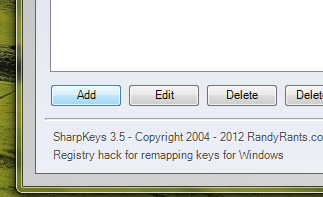
Third step: Then a new window will appear. From there click on 'Type Key' option from the left side column.
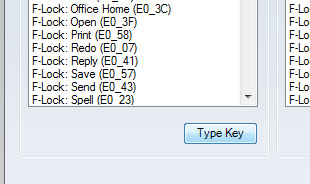
Fourth step: When the new tab appears, click the button you want to change. Then click OK.
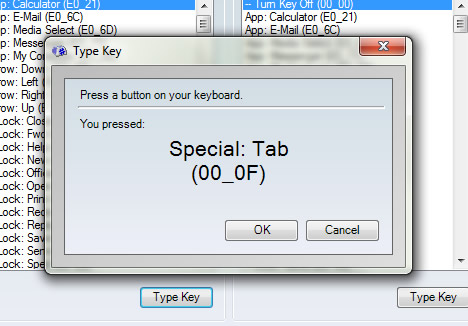
Fifth step: Now the tab will pop up and select from the column on the right side of the window which appropriate button you want to use instead of the first one. Then click 'Type Key' again.
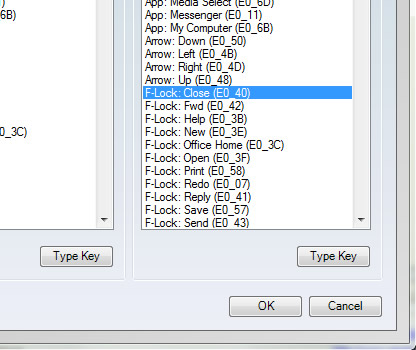
Sixth step: Click ok button and follow step-3 to step-5 again if you want to make more changes to the keyboard layout.
Seventh step: When you have designed the keyboard layout to your liking then click the 'Write to Registry' button.
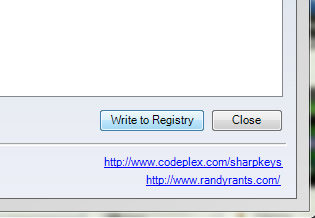
Eighth step: Click OK and click Close.
Ninth step: Restart the computer to test if the changes have been made correctly.
Tenth step: If you don't like any of the new keyboard layout changes or want to revert back to the previous layout, restart SharpKey.
Eleventh step: You will see a list of replaced buttons from the main window. From there select which one to delete. Then click on the Delete button.
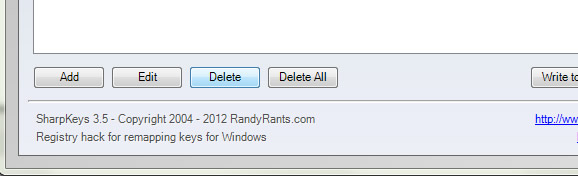
Twelfth step: After that again click on 'Write To Registry' first click on Ok then Close option.
Now the keyboard layout of your choice is created.
Reference: techjournal.com

 English
  Bengali