


The Dhaka Times Desk Using a smartphone, but having trouble with low RAM? If the RAM of the smartphone is low, in a word, you cannot use the phone smartly even if you want to. Because if the RAM in the smartphone is low, no high definition games or apps can be run in it, the phone hangs even if it is run. Today we will know how to increase the RAM of the smartphone.
There are several apps available to increase the RAM of the smartphone, today we will know in detail how to increase the RAM of the smartphone using two apps. But in this case your device must be rooted. For those whose device is not rooted, a detailed tutorial will be given later on how to root in one minute.
Everything you need to increase RAM:
1) A Class 8 or 10 Micro SD Card (which should have a minimum speed of 8MBPS)
2) Applications which will require, BusyBox Installer apps And Ram Expander or Simple Root Swap
You can increase RAM by using both Ram Expender or Simple Root Swap apps. We will learn one by one how to increase RAM using two apps. First download the necessary apps.
- BusyBox Installer
- Ram Expander
- Simple Root Swap
Install all the above mentioned apps and grant the apps by entering your superuser menu. Like the picture below.

Find out how to stop using the extra net of Android!
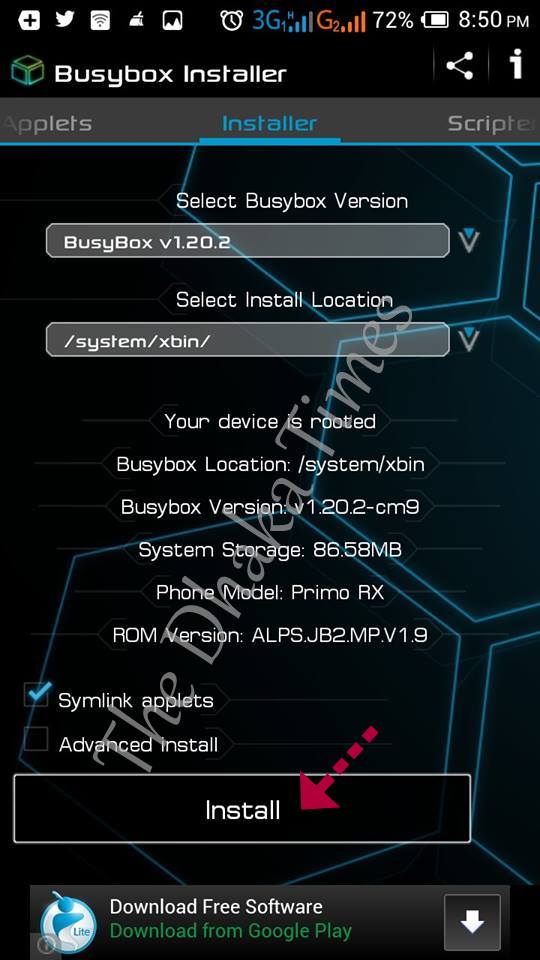
Now you have very important app for your rooted device BusyBox Installer Run and install it. In this case, if you launch the app, it will tell you the details of your device, you will see Install, Uninstall written below. Click Install and wait. Once installed, you will be notified with a notification.
Now know how to increase RAM with Ram Expender:
First launch the Ram Expender app. In this case you have to use your specified part of RAM on your memory card Swap must be done for this Ram Expander A Swap Move the indicator left and right in the file cell and enter the size of your desired Swap file. Remember that the size you give here will be used as your extra RAM. If your set RAM is 512mb then you can increase 512 mb / 1GB RAM. If your memory card is 4 GB, then select maximum 512 and if 8 GB, maximum 850 swap size and enable swap active.
Learn more about how to factory reset an Android phone or tablet!
"Swappiness” write 50 in the box that appears when you click on the text. You can use any value from 0 to 100. 0 will not use the memory card as RAM. The higher the value, the more memory card RAM will be used. But if you give too much there is a possibility of crushing the card so it is better to give it in the middle.
MinFreeKB Enter 1-100 whatever you want by clicking on the text. This will keep some RAM free if the RAM is heavily used.
Above all at the end "Notify icon" and "AutorunTick all the boxes with ”. at the endSwap activeIf you tick the text Create Swap File will begin. Do not do anything else at this time, just wait.

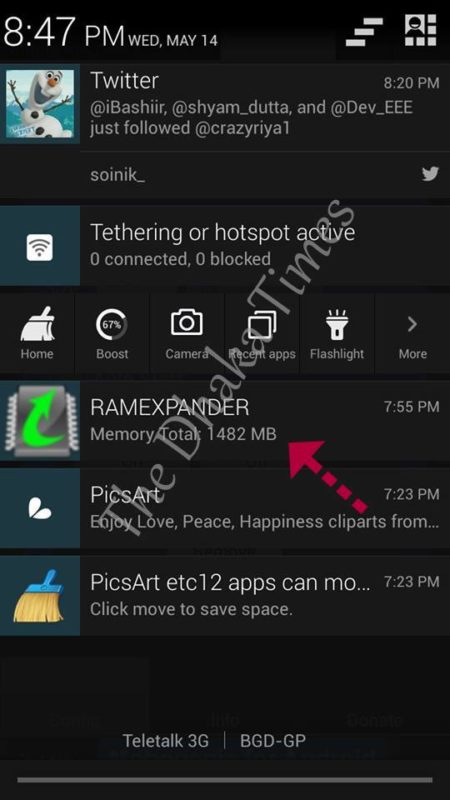
Create Swap File Once you are done, your total RAM will show like above image. Due to keeping notifications on Swap active If so, you will immediately get a notification like the image below in your notification bar.
Now let's know how to increase RAM with Simple Root Swap:
Ram Expander Go to the memory card and delete the swap file by un-ticking its Swap active. Now launch the Simple Root Swap app, it will ask you to create a swap file on the display. Enter your desired size in the number box here. It is better to give 512, 850 instead. Now click on the Re/Create button and it will take some time to create the swap file. A notification will appear when the file is created. Now by clicking on Autostart, click on. Done! The extra RAM you created has been added to your device.
Swap will be off as soon as the device is connected to the computer. Swap will start only after opening the data cable from the computer. Also the Hut Hut memory card cannot be opened.
The above tutorial is written from our own experience. Although there shouldn't be any problem, whatever you do, do it at your own risk. The Dhaka Times or any related party shall not be responsible for any kind of trouble or problem.

 English
  Bengali